Configuring Gmail SMTP Server
AppVirality will send email notifications to users , when user does a conversion event or reward is distributed to user .Which is based on the email configurations enabled under reward configuration. You can use your Gmail SMTP server to deliver notifications to your users.
To configure gmail SMTP server Navigate to:
- App Details on your AppVirality Dashboard by clicking on left menu,
- Click on App Settings
- Switch to EMAIL tab
- Click on + Add
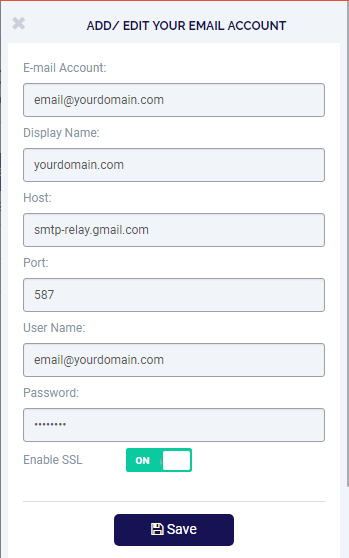
Below screenshot is an example of how you can configure the gmail SMTP server .
Email account fields description
| Fields | Description |
|---|---|
| Host | The host name of the outgoing gmail SMTP (Simple Mail Transfer Protocol) server, such as smtp-relay.gmail.com. |
| Port | The port number used by gmail SMTP server, 587. |
| User Name | username will be you email id. |
| Password | Password of your gmail account. |
| Enable SSL | Turn on SSL encryption. |
Enter all the details required and click on save. Your gmail SMTP server details will be saved.
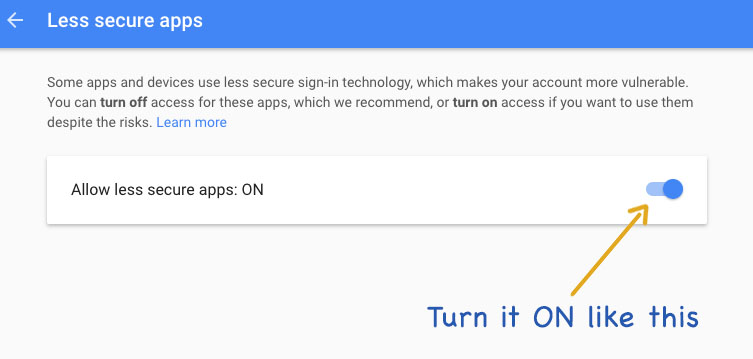
After configuring gmail SMTP server you might still get gmail error: “The SMTP server requires a secure connection or the client was not authenticated. The server response was: 5.5.1 Authentication Required”.
This is a security issue, Gmail by default prevents access for your e-mail account from custom applications. You can set it up to accept the login from your application.
Login to your gmail account and CLICK HERE . You will be navigated to the below page where you can check “Allow less secure apps:” ON/OFF. If it is OFF turn ON as shown in below screenshot.